2.2. Risk & Issue Register
The SCRP Risk & Issue register helps in identifying, assessing, and responding to uncertain events that have the potential to impact the project or its objectives.
This guide shows IPs how to:
Enter risk/issue logs
Edit risk/issue logs
Delete risk/issue logs
Search, sort, and filter risk/issue logs
Export risk/issue logs
2.2.1. Accessing The Risk & Issue Register
Use the link below to access the Risk & Issue Register via KoBoToolbox:
Below are the groups of users can access the Risk & Issue register. You can find detailed information about users here: Users With Access to Data Collection Tools
User Group |
Can View Data |
Can Add Data |
Can Update Data |
Can Delete Data |
Can Export Data |
|---|---|---|---|---|---|
MIS Administrator |
Yes |
Yes |
Yes |
Yes |
Yes |
IPs |
Yes |
Yes |
Yes |
No |
Yes |
World Bank Group |
Yes |
Yes |
Yes |
No |
Yes |
2.2.2. Submitting New Risks/Issues

IPs should first access the Risk & Issue Register by:
Visiting the KoBoToolbox Risk & Issue Register URL.
Logging in by entering the username and password shared by the PIU and hit submit button
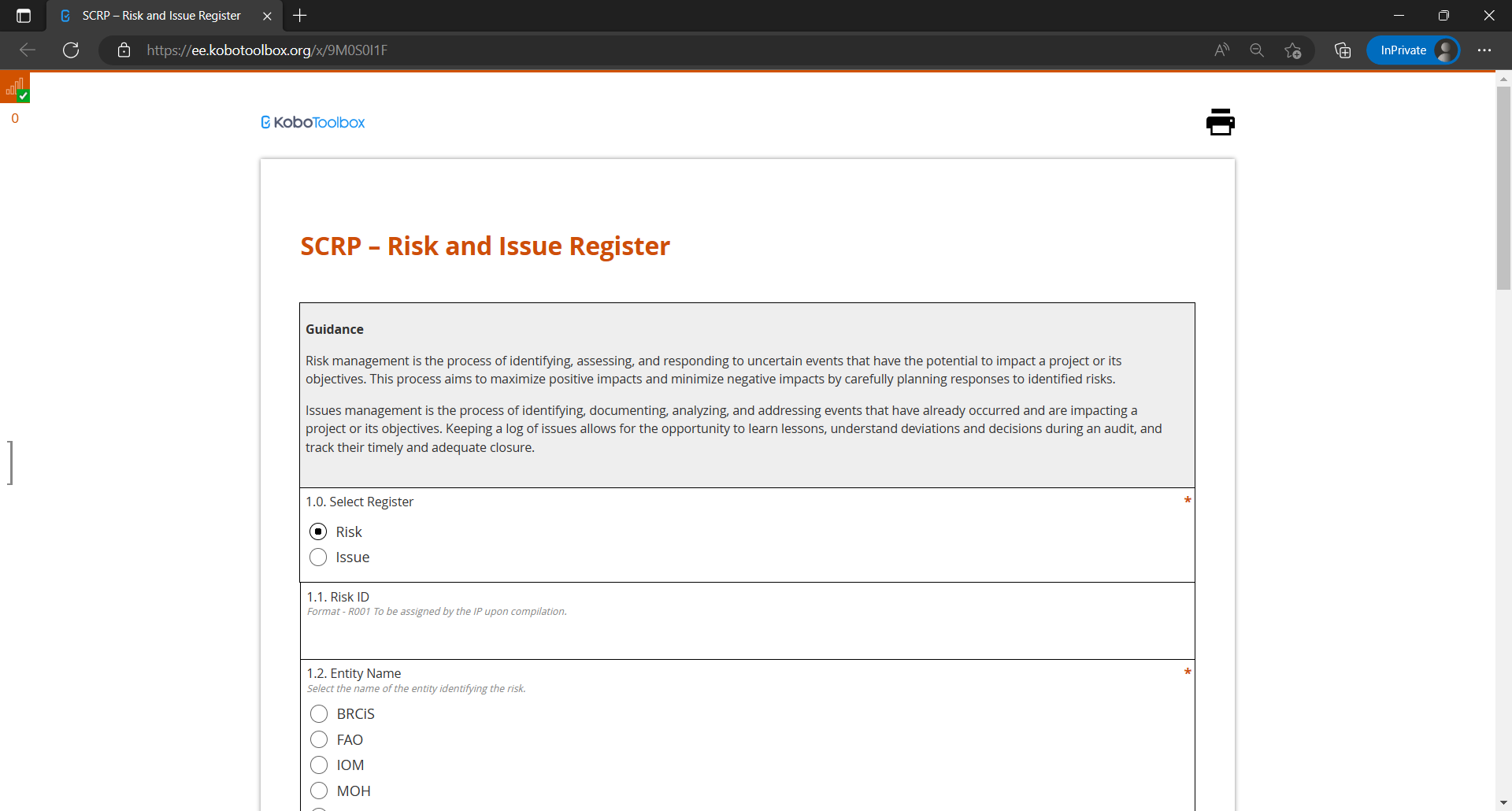
IPs should then fill in the mandatory fields with details regarding the risk/issue:
Type of register
Risk ID
Entity name
Risk category
Risk title
Risk description
Risk probability
Risk impact
Risk proximity
Risk impact description
Risk response measures
Responsibility
Risk status
Date updated
NB: Please note that it may take up to 24 hours for the submitted data to appear on the dashboard.
2.2.3. Editing Risks/Issues Records
IPs can edit their risk/issue logs on KoBoToolbox in case of any errors made during data entry. This can be done in four steps:
Access the KoBoToolbox Portal
Locate the deployed SCRP-Risk and Issue Register KoboToolbox form
Locate the risk/issue record by reporting date and edit it
Submit the edited record
2.2.3.1. Access the KoBoToolbox Portal
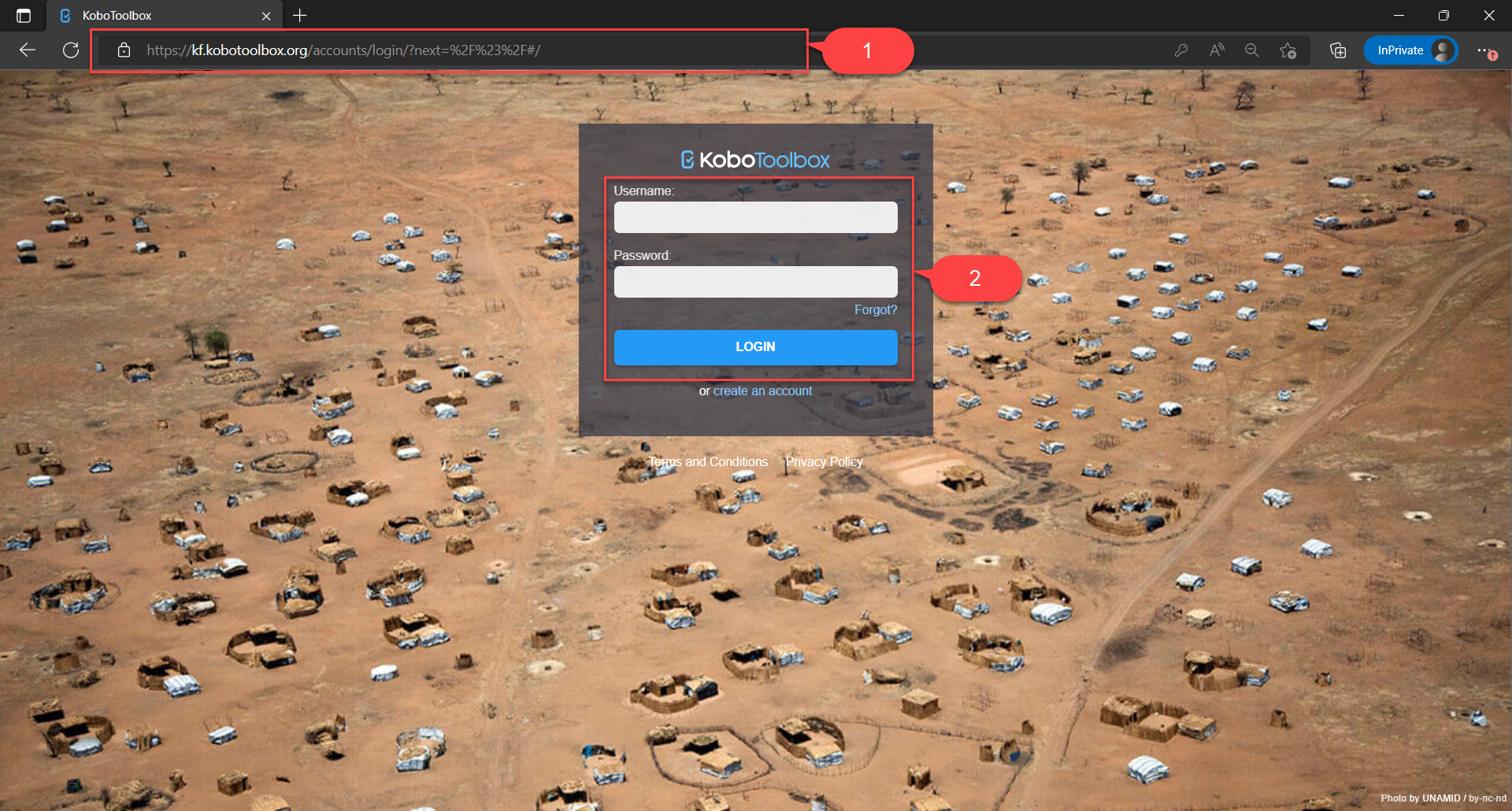
Access the KoBoToolbox Portal via this URL
Login by entering the username and password shared by the PIU and hit login button
2.2.3.2. Locate the SCRP Risk & Issue Register Form

Under deployed projects, click on the SCRP-Risk and Issue Register
Select the Data tab to view all records that had been previously submitted
2.2.3.3. Locate & edit the record
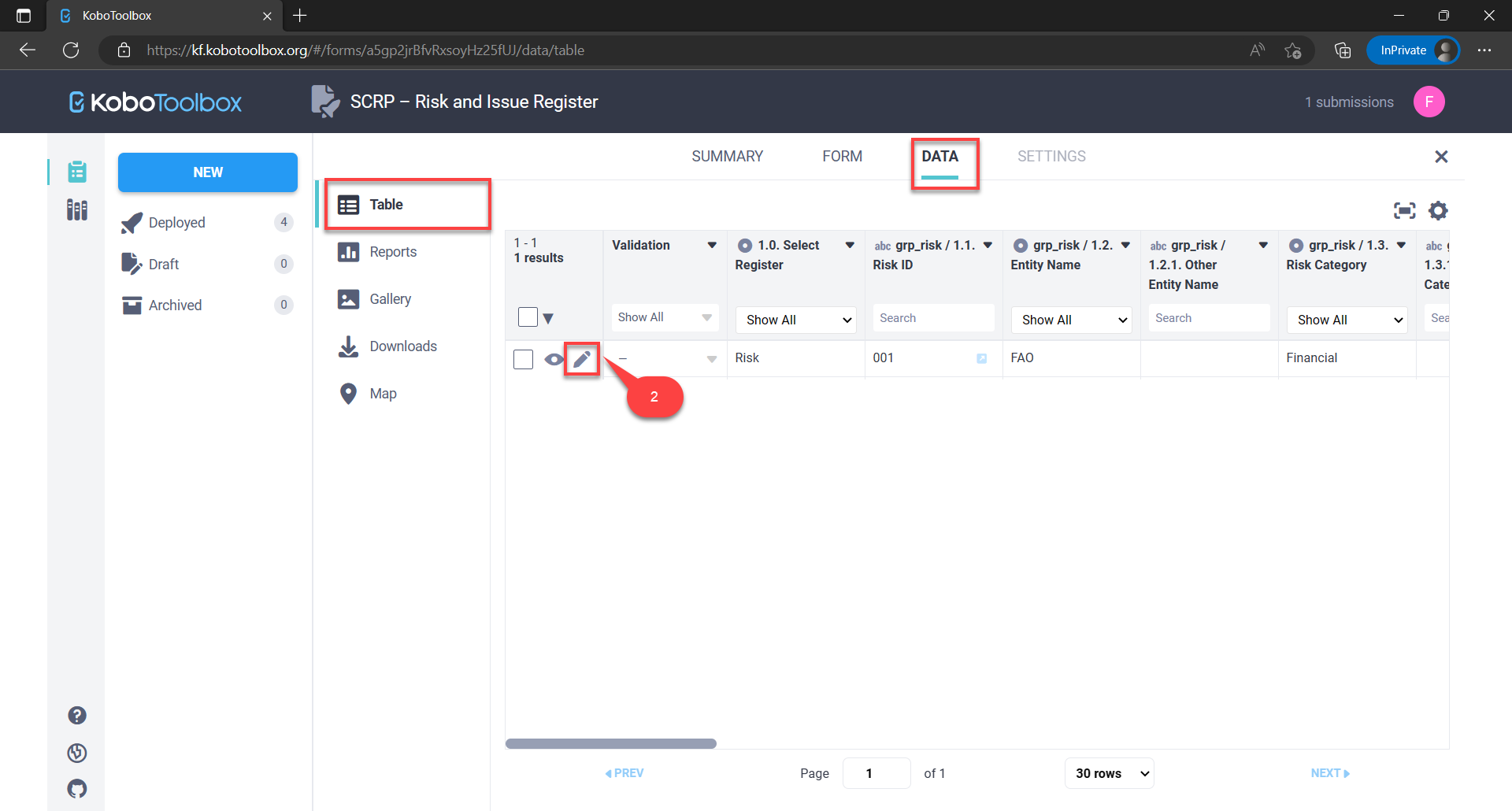
Locate the risk/issue record by the risk/issue ID in the data table
Click on the edit icon to open a new tab and amend the record
Hit the submit button at the end of the form to save the edited record
2.2.3.4. Validating a record
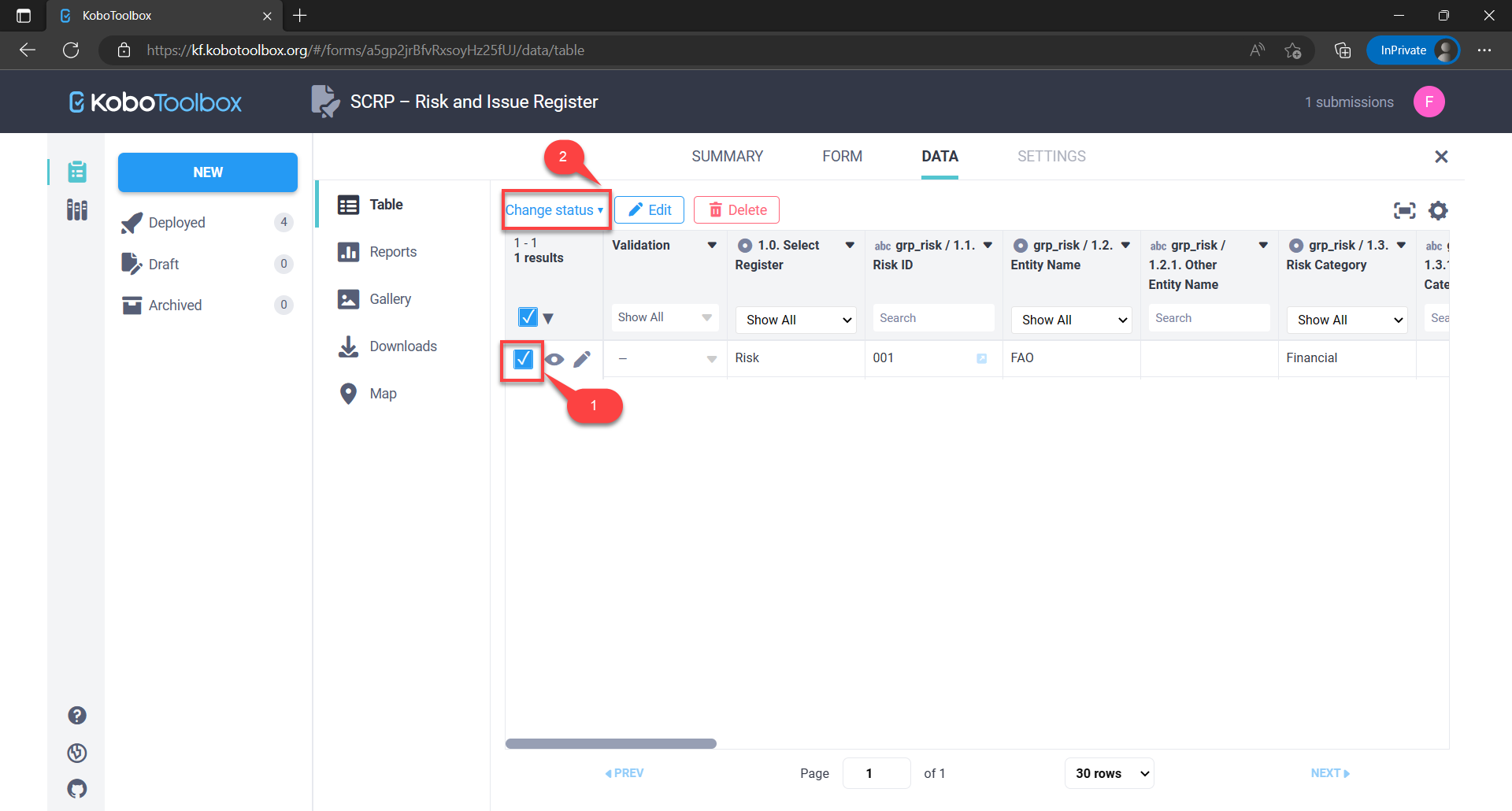
Locate the risk/issue record by the risk/issue ID in the data table
Select the record you want to validate by clicking the checkbox against it
Click the change status button and select “Set status: Approved” to open a pop-up modal
Confirm validation by clicking the “UPDATE VALIDATION STATUS” button to validate the record
2.2.4. Deleting Risk/Issue Records
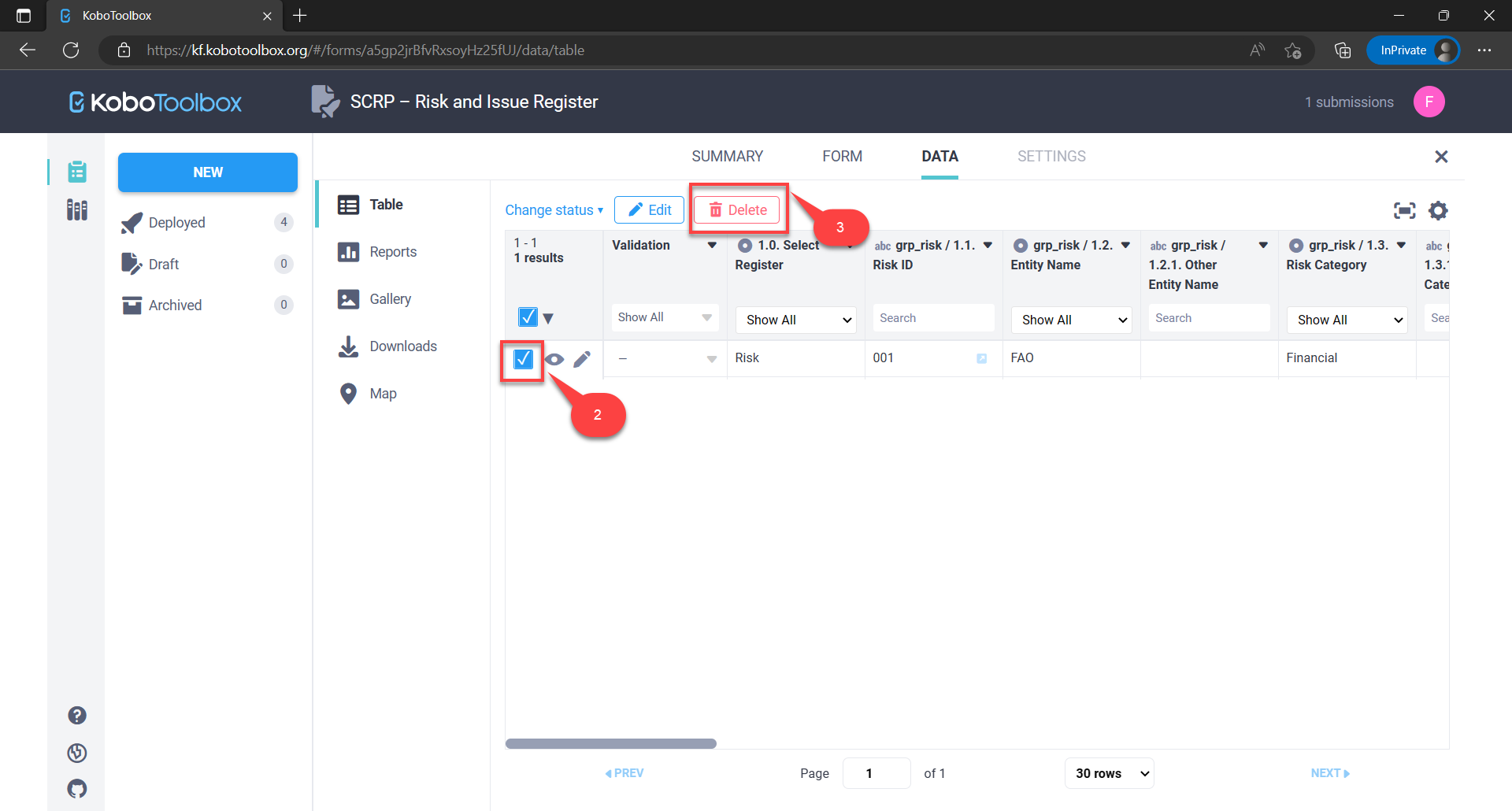
Locate the record and select it by checking the checkbox
Click the “Delete” button
Confirm deletion and click the “Delete Selected” button to delete the record/s
2.2.5. Searching, Sorting, and Filtering Risk/Issue Records
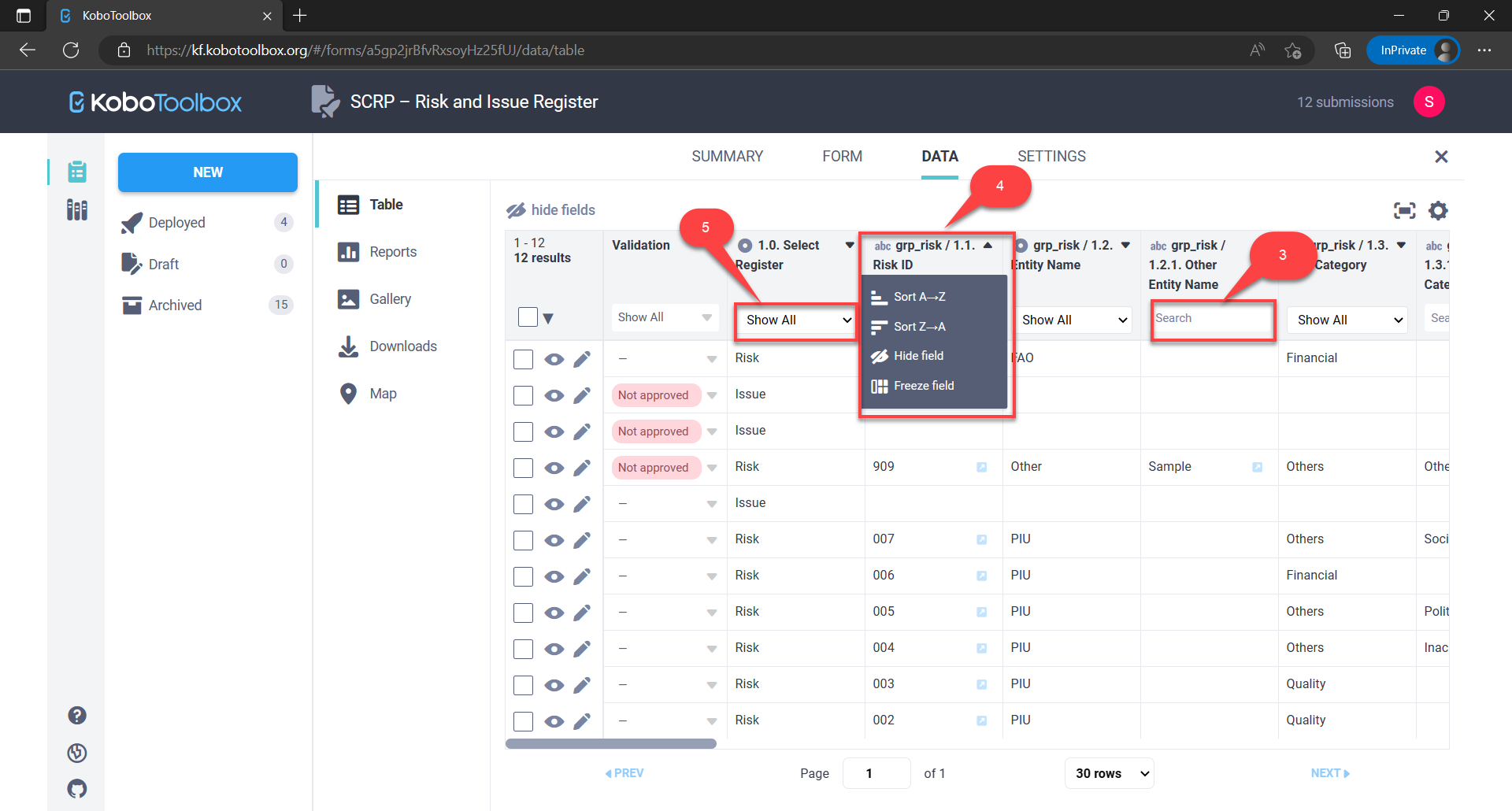
Search a column by typing your query in the search fields
Sort a column by clicking its title and selecting the type of sorting
Filter a column by selecting its “Show All” drop-down button
2.2.6. Exporting Risk/Issue Records

Select the “Downloads” tab
Choose export options e.g. export type - XLS, CSV, GeoJSON, SPSS, ZIP (Media Attachments)
Ensure the default export settings (Official Data Export) is selected
Click the “Export” button to initiate the export (takes a few seconds)
Download the data by clicking the “Download” button