2.7. Drought Response Tracker
The Drought Response Tracker is a Google Sheets document that monitors drought-related activities data within the SCRP.
This guide shows how the PIU can:
Access the tracker
Add, Edit, and Delete records
Export the drought response data
2.7.1. Accessing The Drought Response Tracker

Use the link below to access the Drought Response Tracker:
Please note that you need access rights from the PIU MIS Administrator to view the tracker.
2.7.2. Adding, Editing, and Deleting Records
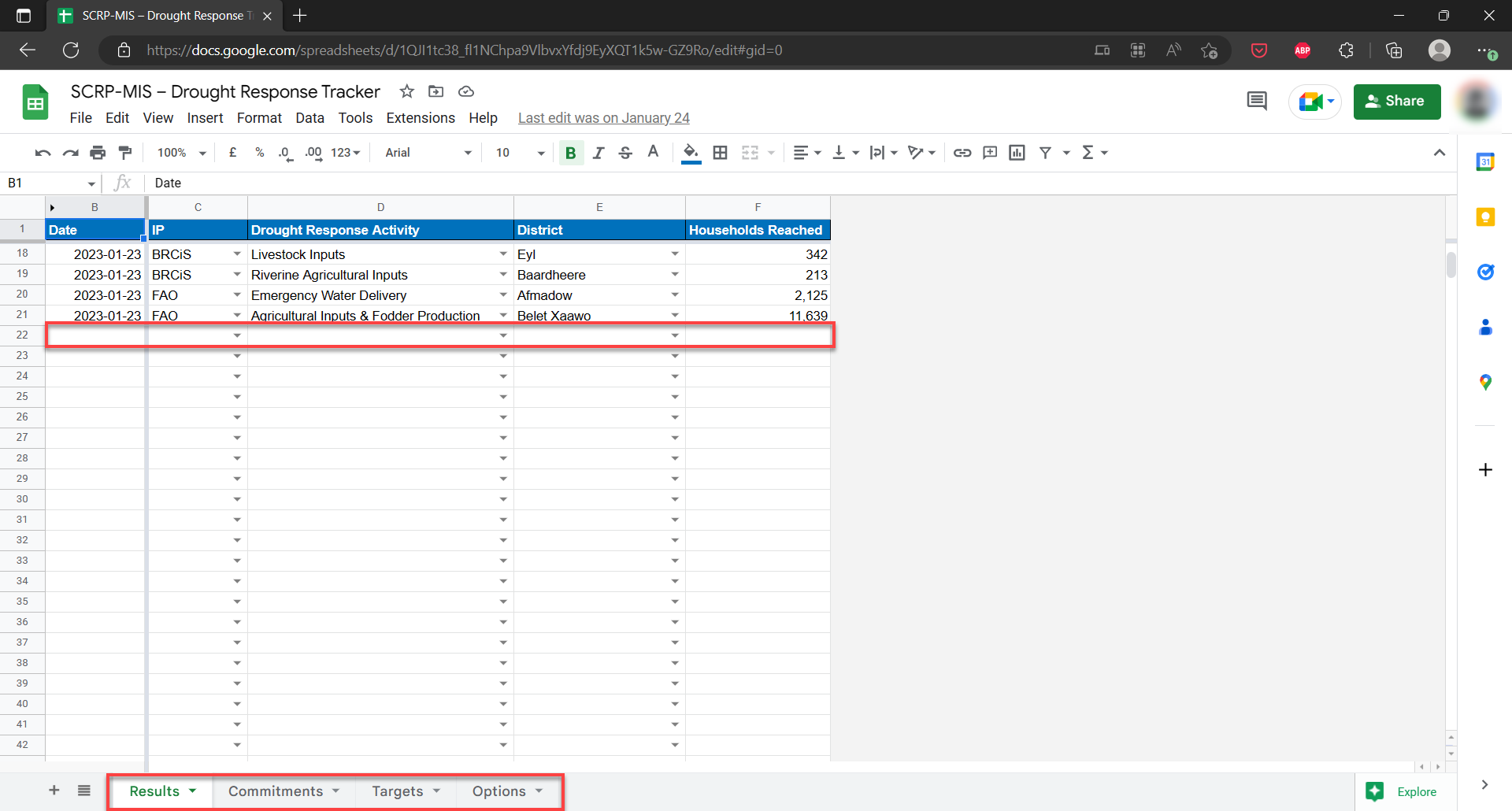
The Drought Response Tracker has 3 work sheets that track different aspects:
Results
Commitments
Targets
Options - settings for fields within the spreadsheet
To get started on data entry/editing or deleting of records, do the following:
Select either of the three main worksheets and enter data on the first empty row after the column headers
Edit data by selecting the specific cell you wish to Update
To delete data, you can either select a single cell or the entire row and hit the delete button
2.7.3. Exporting Drought Response Data

Access the Drought Response Tracker
Select “File” > “Download” from the navigation menu on Google Sheets
Choose the data format you want to begin download